I recently picked up the basics of flask and have been wanting to learn Django. Here's my go @ it with the help of TryHackMe! Django is a high-level Python web framework that enables the rapid development of secure and maintainable websites. It allows you to develop websites and web applications in a matter of hours.
Django can automatically compile HTML code, therefore making it possible for anyone without any advanced knowledge in markup languages to develop a website. Additionally, Django is arguably one of the most secure developing frameworks, which in the right configuration, can strongly resist SQL injections and XSS.
In terms of penetration testing, it's critical to grasp the basic structure of Django-powered websites in order to spot potential flaws and developer errors.
Getting Started
Here's how to get started with Django on your local machine!
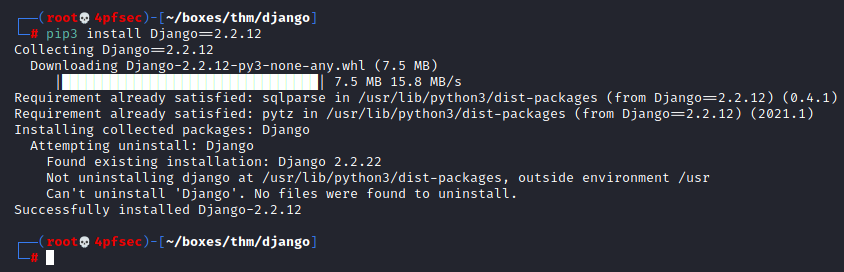
Installing Django
┌──(root💀4pfsec)-[~/boxes/thm/django] └─# pip3 install Django==2.2.12
Creating new Project
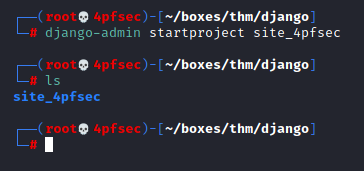
┌──(root💀4pfsec)-[~/boxes/thm/django] └─# django-admin startproject site_4pfsec
Configure created Project
manage.py is a command-line utility that lets you interact with your Django project in various ways. It is especially handy in creating web apps, managing databases, and most importantly running the server.
┌──(root💀4pfsec)-[~/boxes/thm/django/site_4pfsec] └─# ls manage.py site_4pfsec
┌──(root💀4pfsec)-[~/boxes/thm/django/site_4pfsec] └─# python3 manage.py migrate
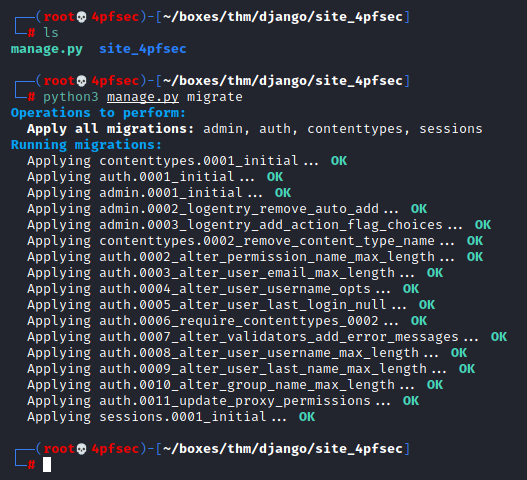
┌──(root💀4pfsec)-[~/boxes/thm/django/site_4pfsec] └─# ls db.sqlite3 manage.py site_4pfsec

Run Django Server
The basic syntax for using this utility is python3 manage.py {command}
Modify Bind Host
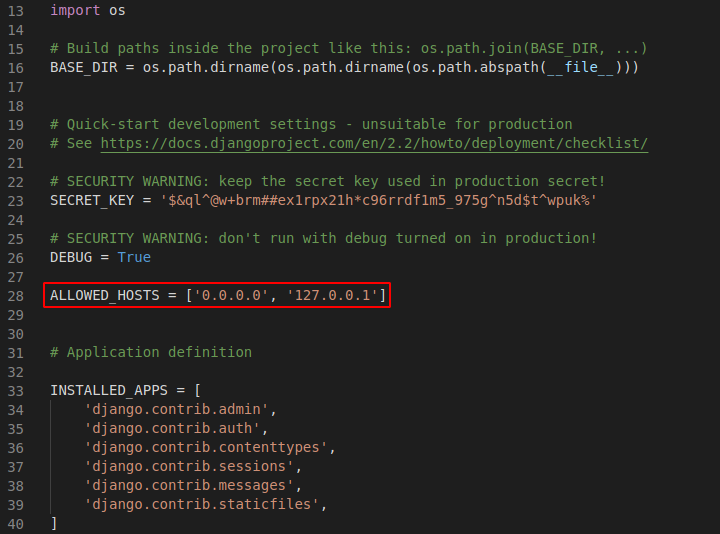
Modify line 28. Add 0.0.0.0 and 127.0.0.1~/django/site_4pfsec/site_4pfsec/settings.py
runserver
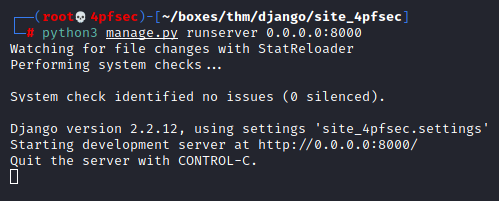
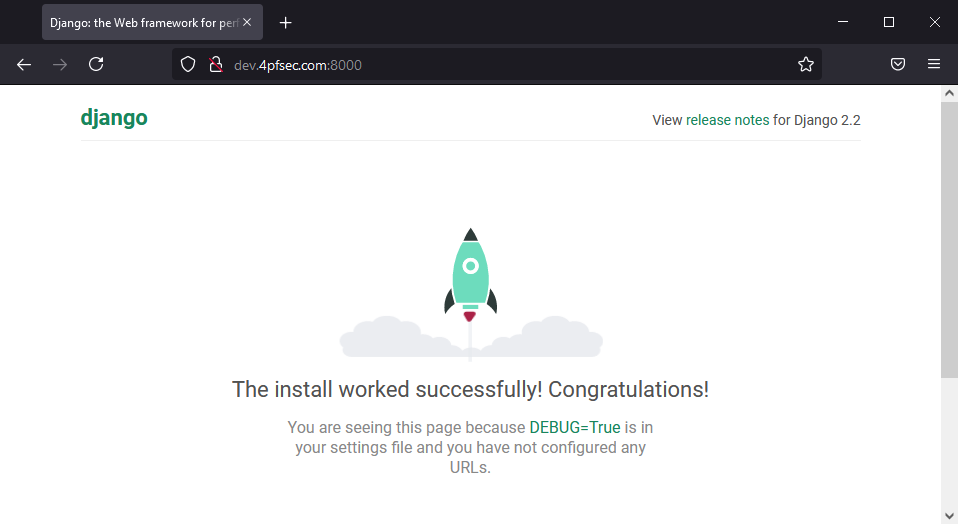
Runserver is the most important command used with manage.py. It allows you to deploy your website on the server. Django has a wonderful feature that allows you to instantly see changes made on the website without restarting it. (It is only necessary to restart runserver command when adding a new app).
┌──(root💀4pfsec)-[~/boxes/thm/django/site_4pfsec] └─# python3 manage.py runserver 0.0.0.0:8000
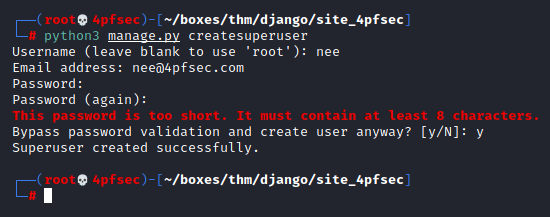
createsuperuser
This command allows you to create an admin account for your Django web admin panel.
┌──(root💀4pfsec)-[~/boxes/thm/django/site_4pfsec] └─# python3 manage.py createsuperuser
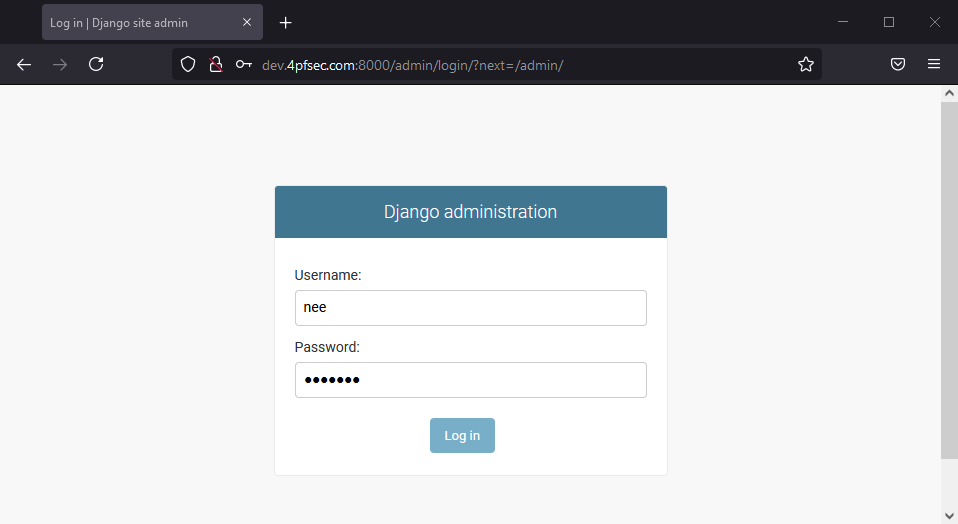
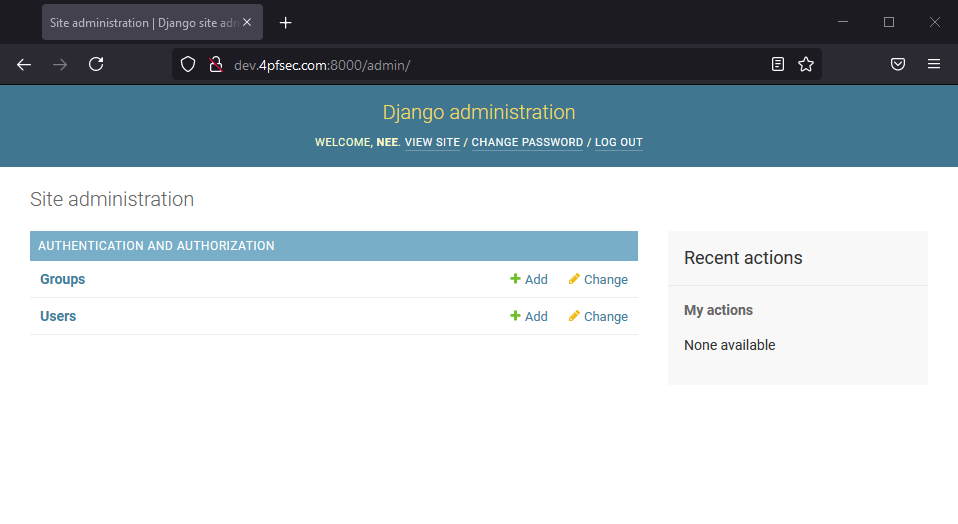
Django Admin Panel
0.0.0.0:8000/admin
This URL can be used to access Django web admin panel.
startapp
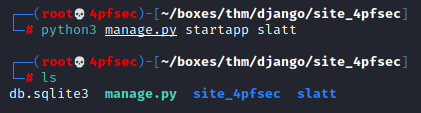
Startapp allows you to initialize an app for your project. Django projects can have an infinite number of apps.
┌──(root💀4pfsec)-[~/boxes/thm/django/site_4pfsec] └─# python3 manage.py startapp slatt
Creating a Site
let's go ahead and create a very simple app.
Modify settings.py
INSTALLED_APPS = [ 'slatt', 'django.contrib.admin', 'django.contrib.auth', 'django.contrib.contenttypes', 'django.contrib.sessions', 'django.contrib.messages', 'django.contrib.staticfiles', ]
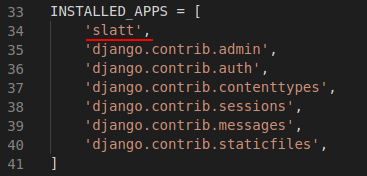
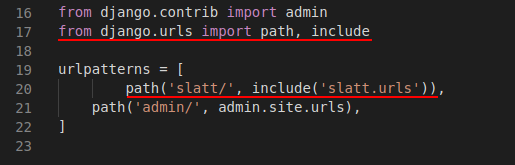
Modify urls.py
from django.contrib import admin from django.urls import path, include
urlpatterns = [ path('slatt/', include('slatt.urls')), path('admin/', admin.site.urls), ]
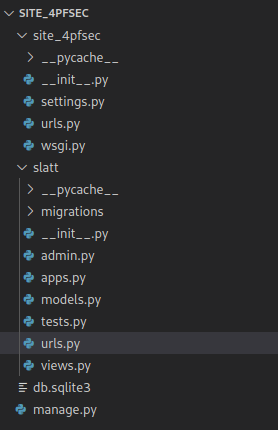
App Directory
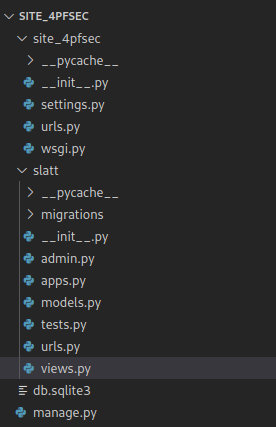
There are a couple files that need to be created in here for the app to work!
urls.py
from django.urls import path from . import views
app_name = 'slatt' urlpatterns = [ path('', views.index, name='index'), ]
views.py
from django.shortcuts import render from django.http import HttpResponse
Create your views here.
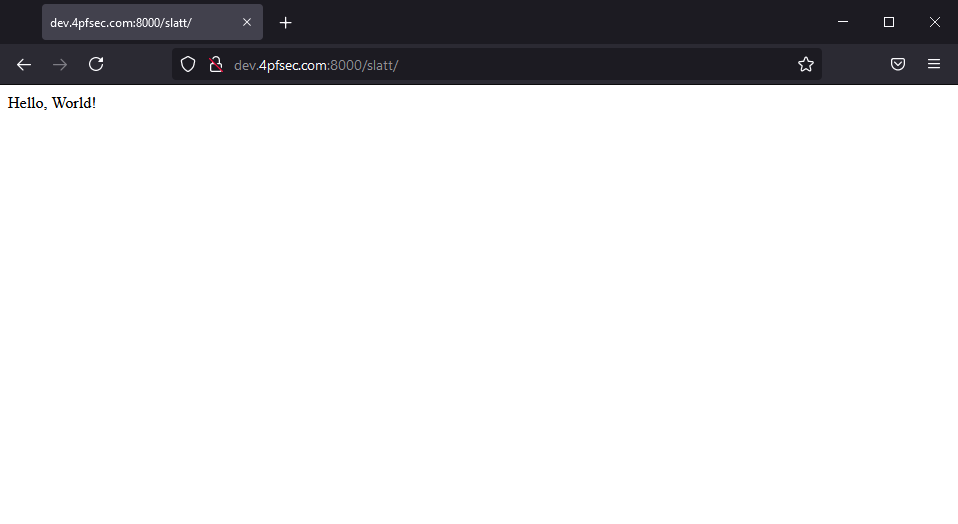
def index(request): return HttpResponse("Hello, World!")
Running App
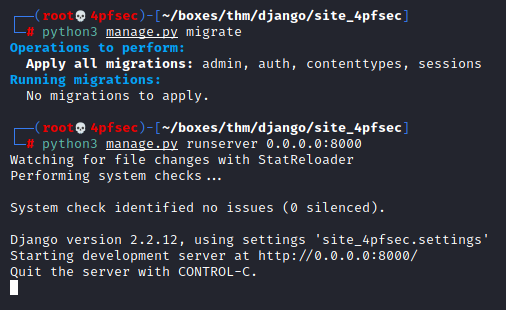
┌──(root💀4pfsec)-[~/boxes/thm/django/site_4pfsec] └─# python3 manage.py migrate
┌──(root💀4pfsec)-[~/boxes/thm/django/site_4pfsec] └─# python3 manage.py runserver 0.0.0.0:8000
Rendering Templates with Django
Django is able to automatically generate HTML markdown if properly told so. Templates are the ones who help us with that.
Templates
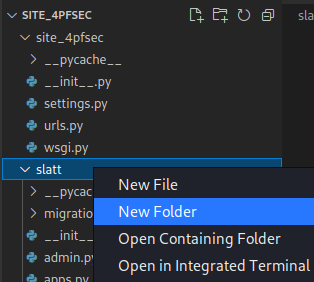
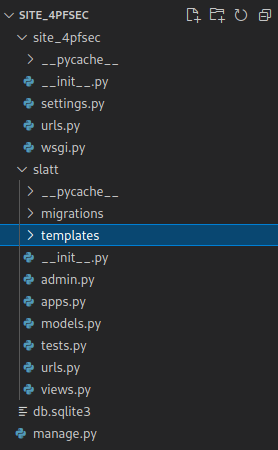
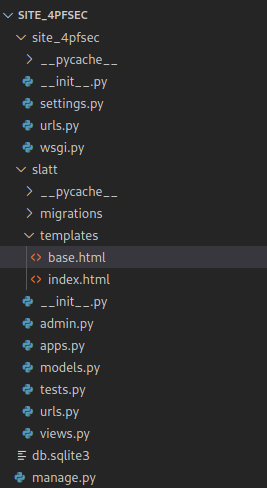
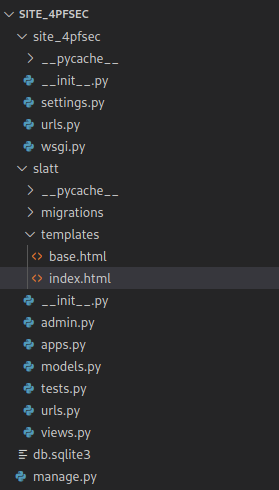
Create a template subdirectory in the app directory to hold all of our templates.
Base.html
<!DOCTYPE html> {% block title %}Slatt{% endblock %}
{% block content %} {% endblock %}
index.html
{% extends 'base.html'%}
{% block content %}
Hello world! -Nee!
{% endblock %}
views.py
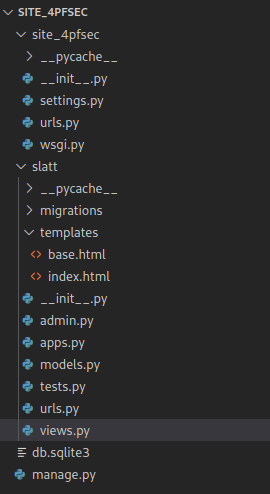
from django.shortcuts import render from django.http import HttpResponse
Create your views here.
def index(request): return render(request, 'index.html')
Running App
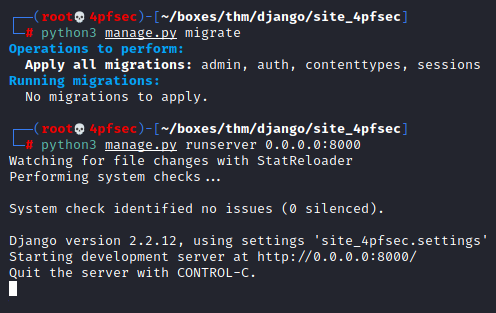
┌──(root💀4pfsec)-[~/boxes/thm/django/site_4pfsec] └─# python3 manage.py migrate
┌──(root💀4pfsec)-[~/boxes/thm/django/site_4pfsec] └─# python3 manage.py runserver 0.0.0.0:8000
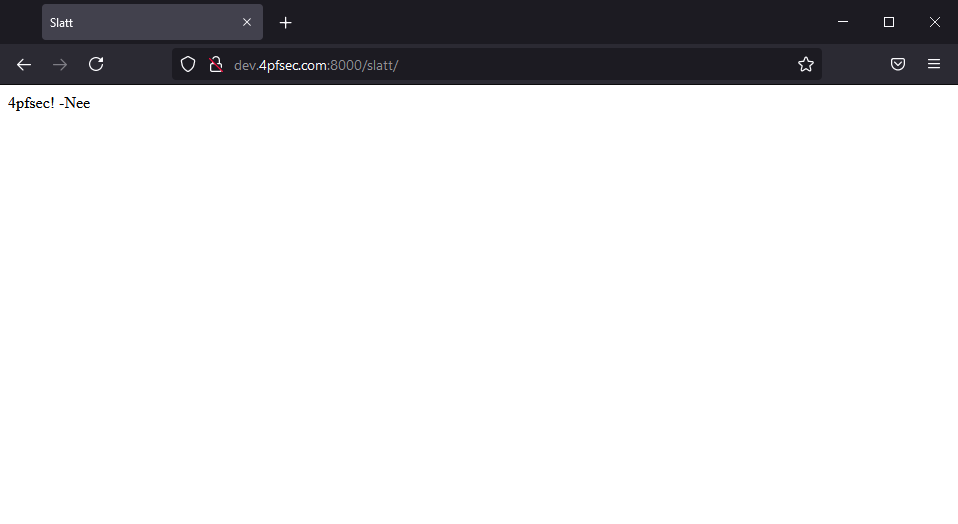

CTF
Target host = 10.10.131.20Target Port = 8000Target Username = django-adminTarget Password = roottoor1212
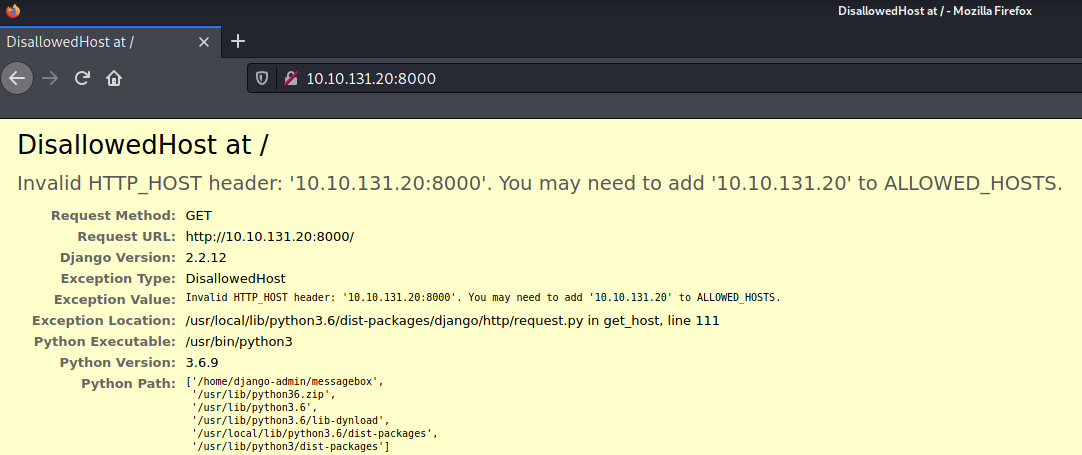
Browsing to the host on that port returned a disallowed error as shown below.
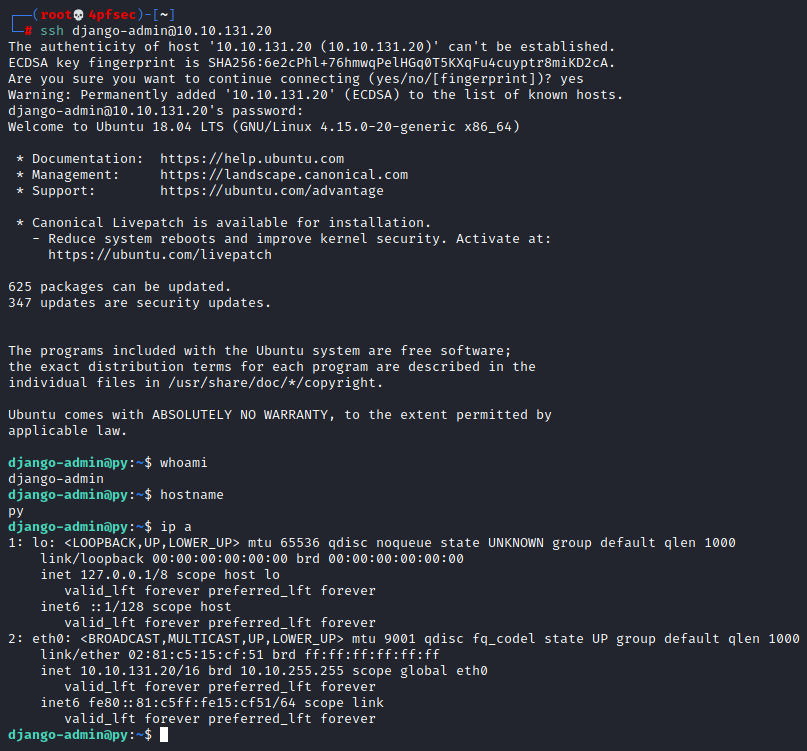
I was able to log in to the server via SSH with the given credentials.
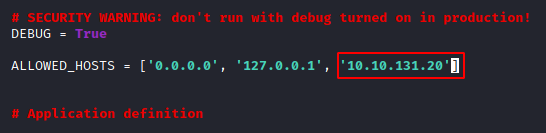
Since I had access to the server, I modified the ALLOWED_HOSTS list in settings.py
django-admin@py:~/messagebox/messagebox$ nano settings.py
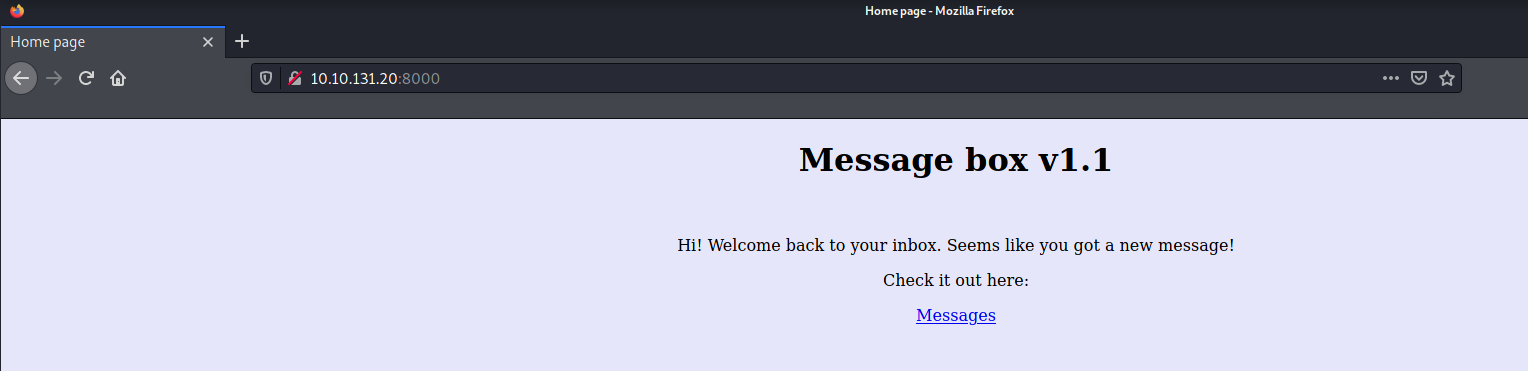
That modification led me into the application as shown below.
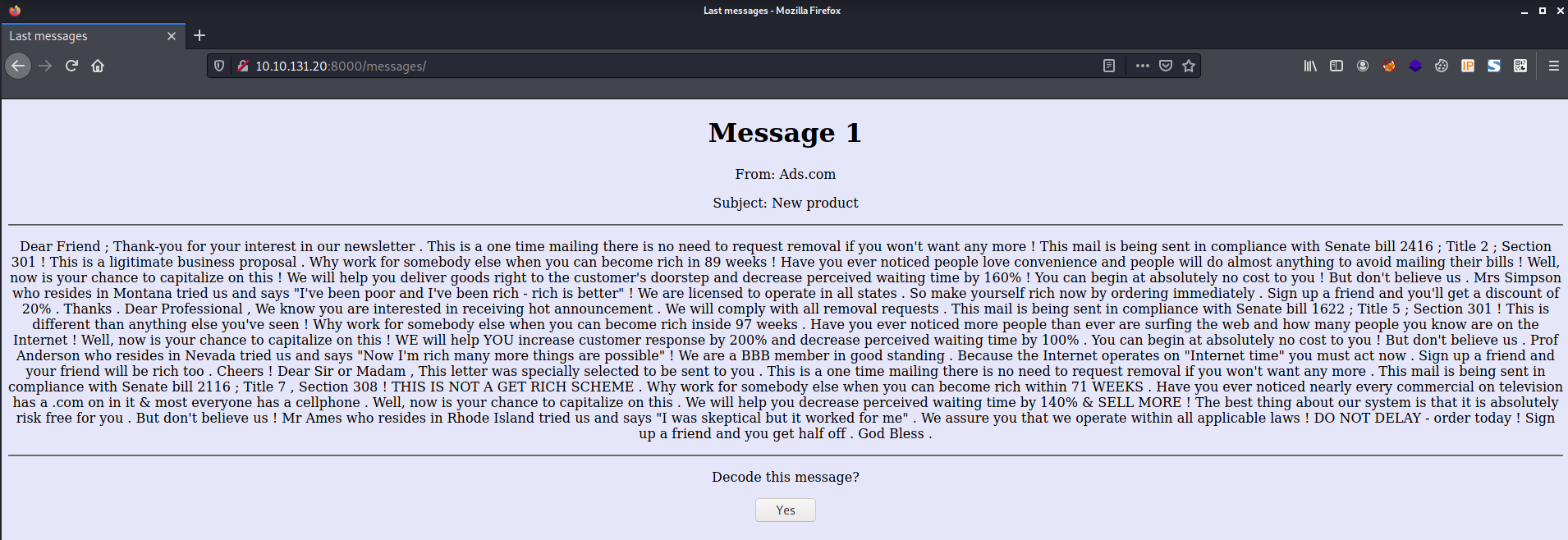
Exploring messages returned the following.
Admin panel flag?
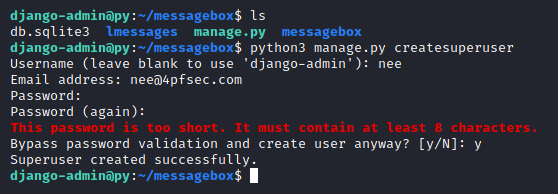
Since I had access to the server, I used the createsuperuser command to create my own user to be able to login to the Admin panel.
django-admin@py:~/messagebox$ python3 manage.py createsuperuser
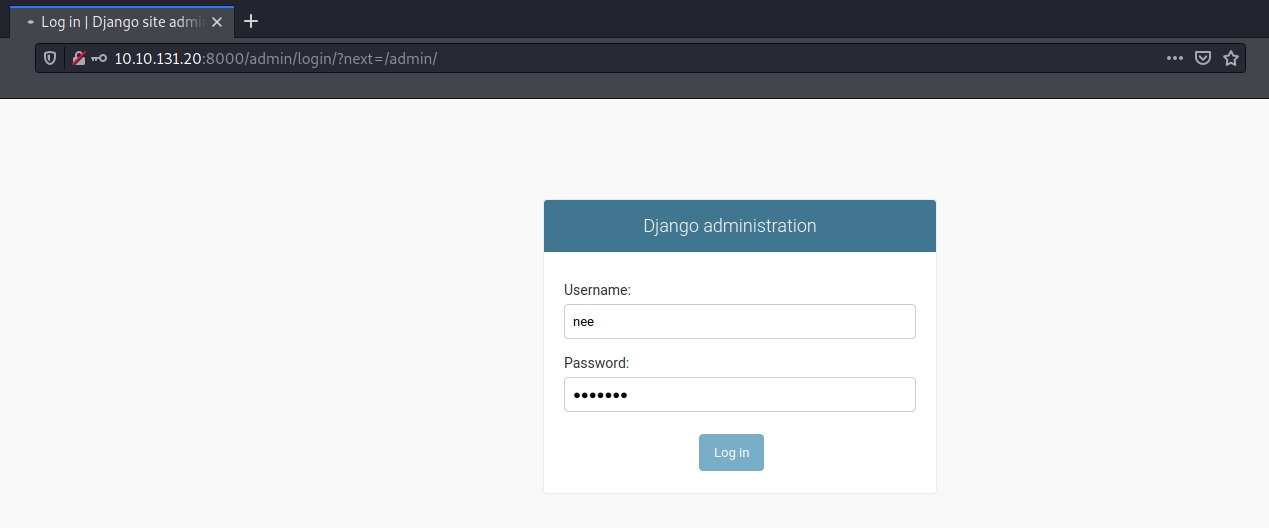
http://10.10.131.20:8000/admin/
With that, I was able to login to the admin panel as shown below.
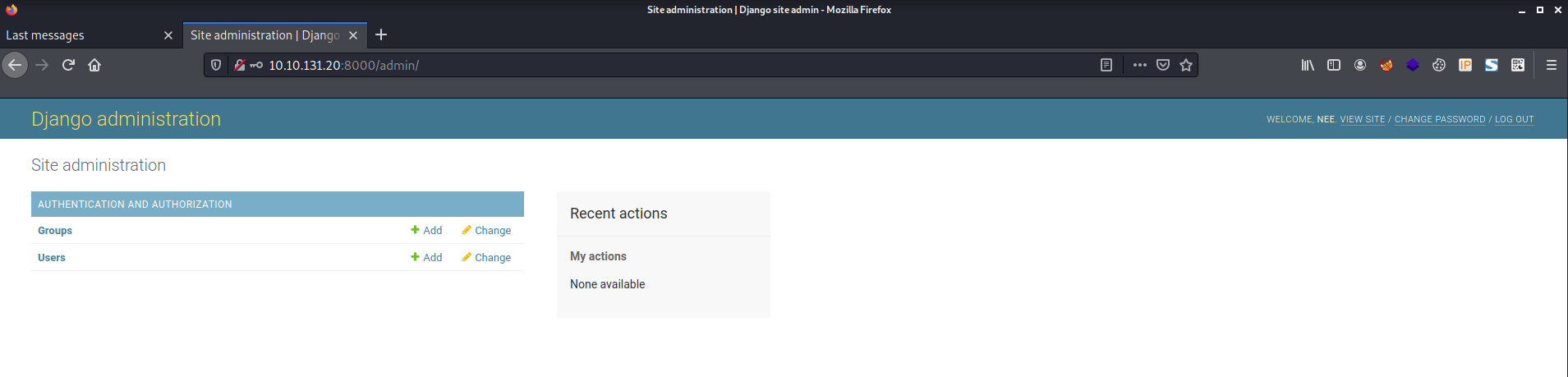
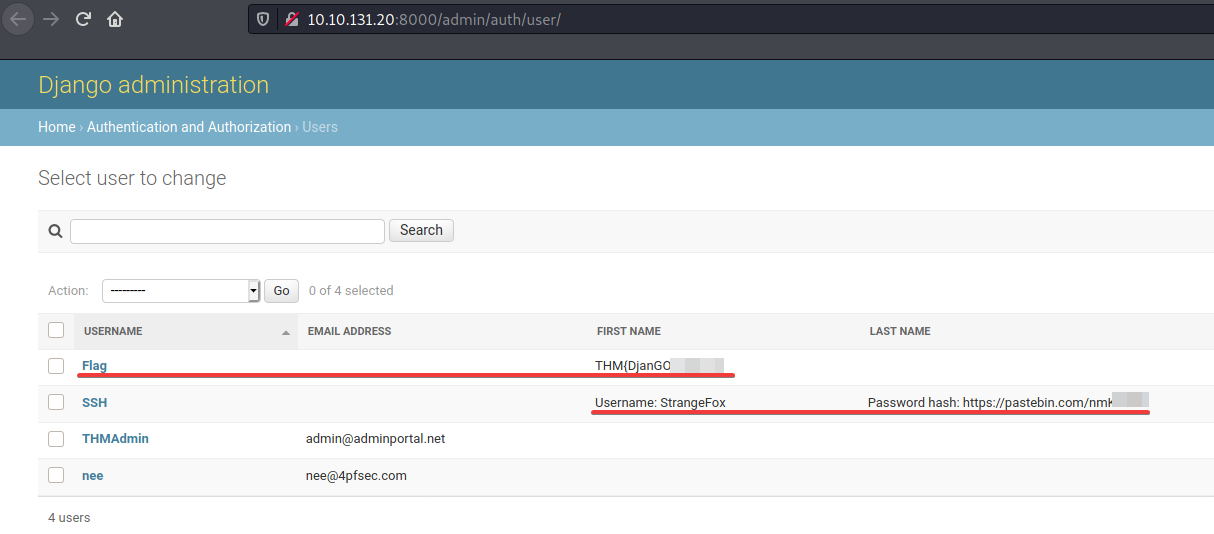
Browsing to http://10.10.131.20:8000/admin/auth/user/ reveals the flag and some other interesting information as shown below!
User flag?
The previous challenge gave us a new username and a password hash.
Username: StrangeFox
Password hash: https://pastebin.com/nmK---
Using https://toolz.4pfsec.com/hashId/ I was able to detect the hash as shown below.
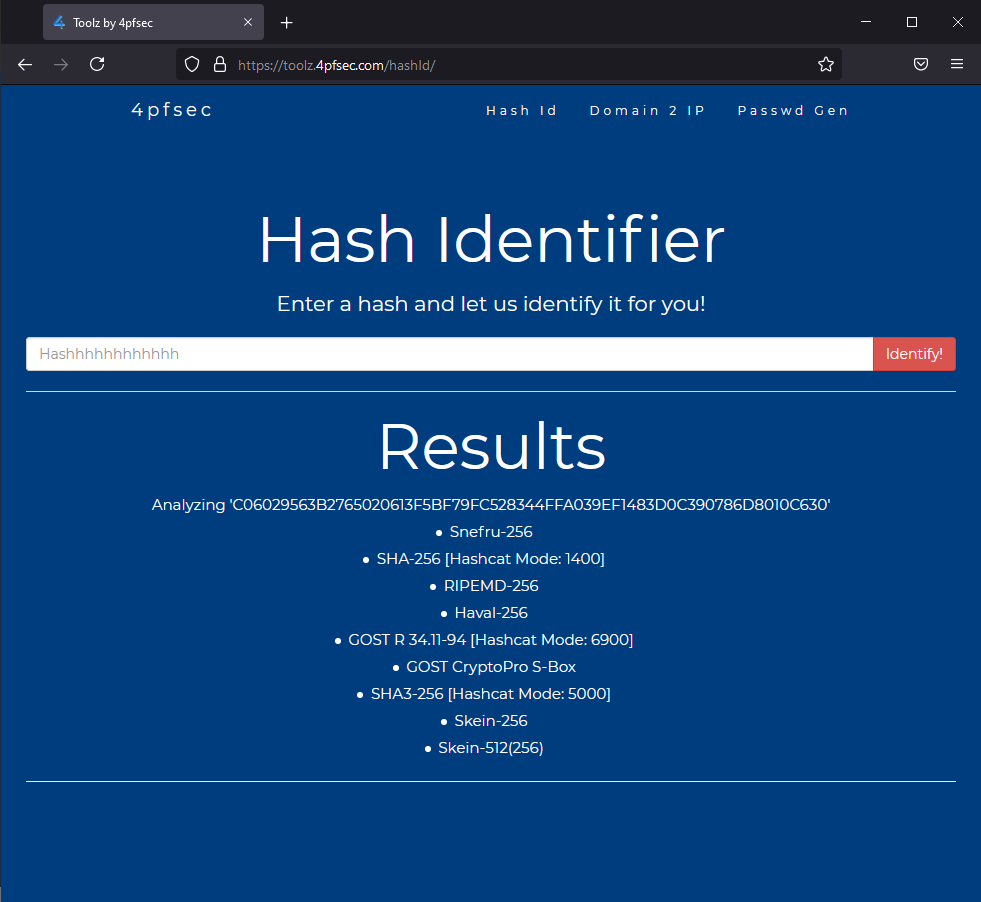
SHA-256 [Hashcat Mode: 1400]
Since I knew it was a SHA-256 hash, I used hashcat mode 1400 to go ahead and crack it.
.\hashcat.exe -m 1400 .\hashes\djangoCtf.txt .\wordlists\mylist.txt --force
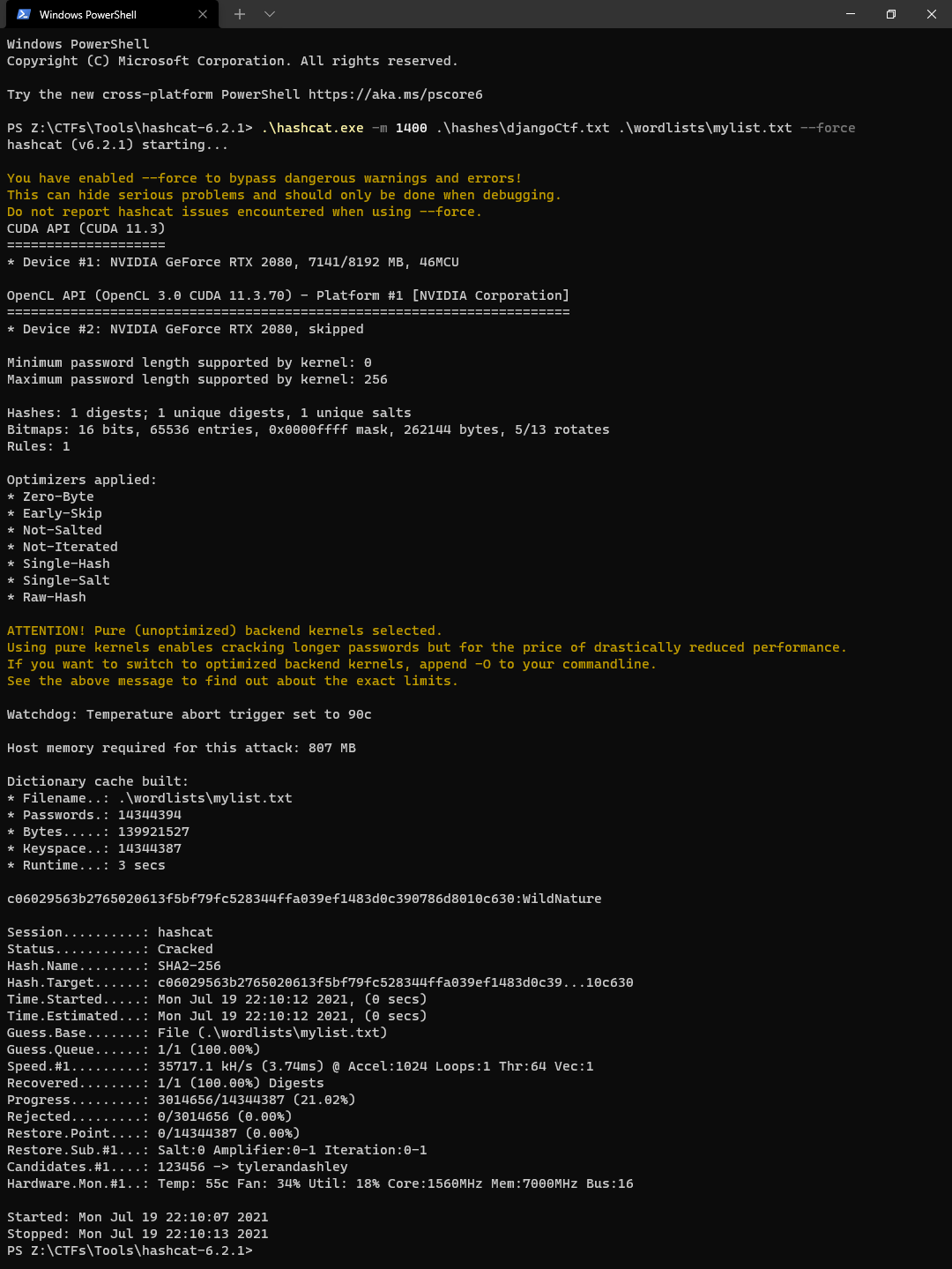
c06029563b2765020613f5bf79fc528344ffa039ef1483d0c390786d8010c630:WildNatureTarget User = StrangeFoxTarget User's Password = WildNature
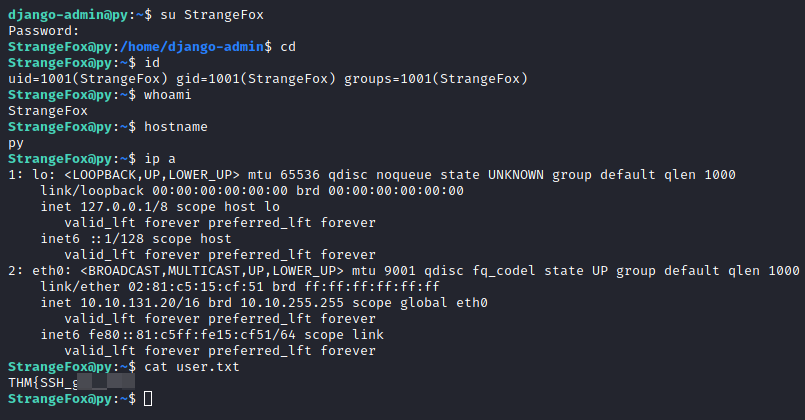
Knowing the credentials, I switched to that user.
su StrangeFox WildNature
Hidden flag?
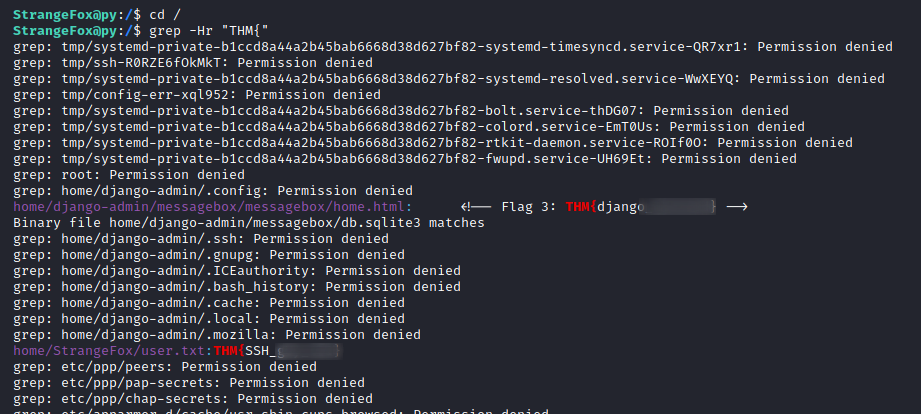
Knowing that the flag would be on the machine, I grep-ed recursively throughout the FS to find the flag. (as shown below)
StrangeFox@py:/$ cd / StrangeFox@py:/$ grep -Hr "THM{"
Conclusion
With that, this room has successfully taught me the basics of Django and how to use it against devs! Hope it helped you in some way 😏!
About the author
All things Information Security!
Comments
Join the discussionNo comments yet. Be the first to comment.